


MapQuest and Garmin Nuvi 760

Banned
Joined: Oct 2009
Posts: 20,823
Likes: 1,506
From: Nowhere
Banned
Joined: Oct 2009
Posts: 20,823
Likes: 1,506
From: Nowhere
Road Captain
Joined: Aug 2012
Posts: 562
Likes: 21
From: Arlington, TX

I'm not familiar with the Nuvi 760, but I have download routes to my Zumo without any problem.
After you have created your route in MapQuest make sure your GPS is connected to your computer. In MapQuest there is a "Send" button near the top right. Click on it and the dropdown contains a "Garmin GPS" button which you click on. That will open another window where you should select "Route" instead of "Waypoints", then enter a name for your route. In the "Selected Devices" box you should see your Nuvi 760 listed which you should select. Then click the "Send" button and your done with the MapQuest portion. It just takes a couple of seconds for the transfer to work.
After it says the transfer was successful, you can unplug the Nuvi from the computer. Turn it on and in a few seconds it should ask you if you want to import new data. Select yes and it will create your route on the device.
Then you should be able to select the route and navigate it. All these instructions are based on the Zumo, and if you Nuvi is route capable (it's not listed as such on Garmin's website) it should be the same.
That's all there is to it. Let me know if you have problems and I will try to help. I just returned from an 10 day trip to Colorado and I loaded a route for each day following the above procedure.
After you have created your route in MapQuest make sure your GPS is connected to your computer. In MapQuest there is a "Send" button near the top right. Click on it and the dropdown contains a "Garmin GPS" button which you click on. That will open another window where you should select "Route" instead of "Waypoints", then enter a name for your route. In the "Selected Devices" box you should see your Nuvi 760 listed which you should select. Then click the "Send" button and your done with the MapQuest portion. It just takes a couple of seconds for the transfer to work.
After it says the transfer was successful, you can unplug the Nuvi from the computer. Turn it on and in a few seconds it should ask you if you want to import new data. Select yes and it will create your route on the device.
Then you should be able to select the route and navigate it. All these instructions are based on the Zumo, and if you Nuvi is route capable (it's not listed as such on Garmin's website) it should be the same.
That's all there is to it. Let me know if you have problems and I will try to help. I just returned from an 10 day trip to Colorado and I loaded a route for each day following the above procedure.
Road Captain
Joined: Aug 2012
Posts: 562
Likes: 21
From: Arlington, TX
I forgot to mention that my answer above assumes you have Garmin Communicator installed on your computer. It's software that is free on Garmin's website.
Trending Topics
Road Captain
Joined: Aug 2012
Posts: 562
Likes: 21
From: Arlington, TX
I'm not familiar with the Nuvi 760, but I have download routes to my Zumo without any problem.
After you have created your route in MapQuest make sure your GPS is connected to your computer. In MapQuest there is a "Send" button near the top right. Click on it and the dropdown contains a "Garmin GPS" button which you click on. That will open another window where you should select "Route" instead of "Waypoints", then enter a name for your route. In the "Selected Devices" box you should see your Nuvi 760 listed which you should select. Then click the "Send" button and your done with the MapQuest portion. It just takes a couple of seconds for the transfer to work.
After it says the transfer was successful, you can unplug the Nuvi from the computer. Turn it on and in a few seconds it should ask you if you want to import new data. Select yes and it will create your route on the device.
Then you should be able to select the route and navigate it. All these instructions are based on the Zumo, and if you Nuvi is route capable (it's not listed as such on Garmin's website) it should be the same.
That's all there is to it. Let me know if you have problems and I will try to help. I just returned from an 10 day trip to Colorado and I loaded a route for each day following the above procedure.
After you have created your route in MapQuest make sure your GPS is connected to your computer. In MapQuest there is a "Send" button near the top right. Click on it and the dropdown contains a "Garmin GPS" button which you click on. That will open another window where you should select "Route" instead of "Waypoints", then enter a name for your route. In the "Selected Devices" box you should see your Nuvi 760 listed which you should select. Then click the "Send" button and your done with the MapQuest portion. It just takes a couple of seconds for the transfer to work.
After it says the transfer was successful, you can unplug the Nuvi from the computer. Turn it on and in a few seconds it should ask you if you want to import new data. Select yes and it will create your route on the device.
Then you should be able to select the route and navigate it. All these instructions are based on the Zumo, and if you Nuvi is route capable (it's not listed as such on Garmin's website) it should be the same.
That's all there is to it. Let me know if you have problems and I will try to help. I just returned from an 10 day trip to Colorado and I loaded a route for each day following the above procedure.
HD Forum Stories
The Best of Harley-Davidson for Lifelong Riders
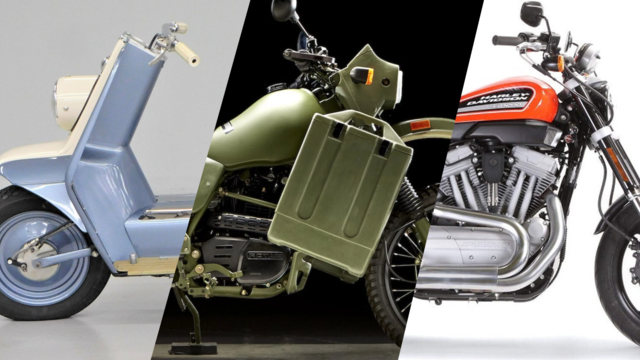
7 Times Harley-Davidson Chucked Tradition Out the Window
Verdad Gallardo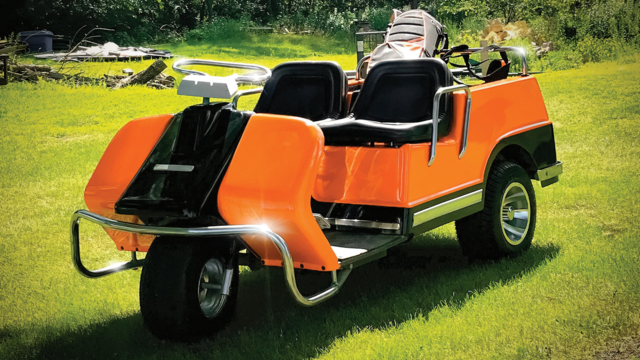
7 Surprising Harley-Davidson Products that Are Not Motorcycles
Verdad Gallardo
8 Best Harley-Davidson Motorcycles Ever
Pouria Savadkouei
10 Worst Harley-Davidson Motorcycles Ever
Pouria Savadkouei
Killer Custom's Jail Break Is The Breakout That Refused to Blend In
Verdad Gallardo
Crazy Bunderbike Build Looks Amazing, But Is It Impossible to Ride?
Verdad Gallardo
Harley-Davidson Reveals Super Cool Cafe Racer Concept
Verdad Gallardo
Engraved Rebellion: Inside Bundnerbike's Glam Rock II
Verdad Gallardo
10 Motorcycles You Should Never Buy
Joe Kucinski
Thread
Thread Starter
Forum
Replies
Last Post